Showing posts with label pfsense. Show all posts

Friday, August 29, 2014

How and WHY update pfSense

What is UPDATE or UPGRADE?
Why we need it?


"Updates are additions to software that can help prevent or fix problems, improve how your computer works, or enhance your computing experience."

"Upgrades introduce improvements and new features"

"Upgrades address/correct bugs encountered in prior versions."


and a lot more...


Now that you have an idea how important updates are, let's proceed to our next step...


Prepare your pfSense for an update/upgrade....

Anything can happen,and for some reasons, your system may become unstable while updating or maybe after the update. So it is a good idea to back up first your configuration settings before doing the update. So that if the update goes wrong, you have a chance to go back to your previous stable state...

Here's how to back up your configuration:


1. Go to DIAGNOSTIC tab of your pfSenseGUI and click Backup/Restore.

    1.1. Diagnostics: Backup/restore page will open and you have now the option to Backup or Restore configuration

2. Click DOWNLOAD CONFIGURATION and save it on a secure location or directory.
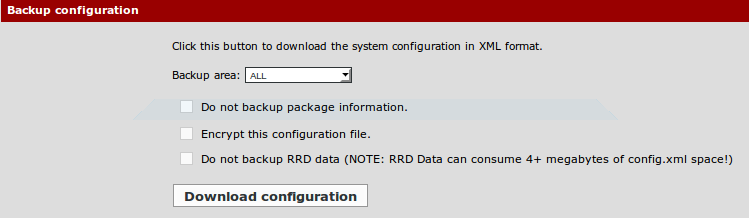


That's it. You now have a backup of your configuration. (Settings, Rules, Packages, more...)


Now
that we have the backup configuration, we can now proceed on updating our pfSense.
 

As of now 2.1.5 is the new and latest version. - "The 2.1.5 release follows shortly after 2.1.4 and is primarily a security release."  read more here

Here's how to update your pfSense:

1. Check the VERSION Status section of your pfSense on your dashboard.
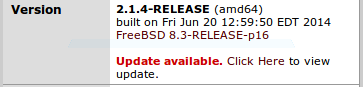


    1.1. You will see UPDATE AVAILABLE if there's an update available for you as you can see on the picture above. If your pfSense is updated, then it will tell you that "You are on the latest version."

    1.2. Click CLICK HERE to open the update page.
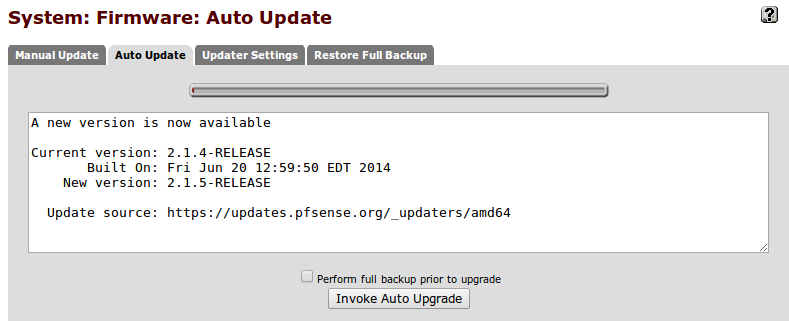


2. As you can see on the picture above, the current version that I have is 2.1.4 and the newer version is 2.1.5... Click INVOKE AUTO UPGRADE to update/upgrade pfSense.


3. pfSense will download the updates now.
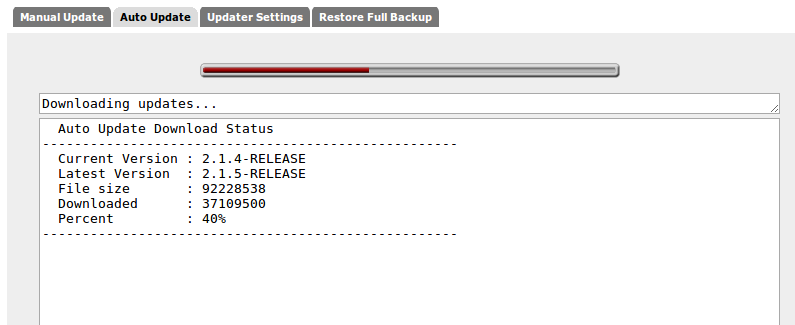


    3.1. Be patient. Wait. Your pfSense will reboot if it is done.
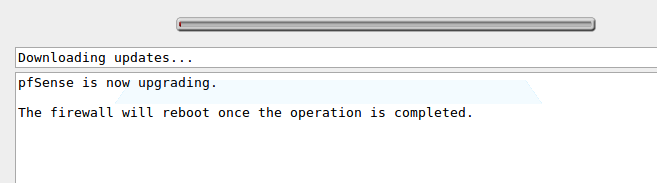


4. Once it is done, access your pfSense webgui again and check the VersionStatus. You must see 2.1.5 Release and "you are on the latest version"


-Done! :) Good job!


Note: If something is wrong about the new and updated version, you can go back to your previous configuration or setup using the backup that we did earlier... just upload the backup config file on Diagnostic Backup/Restore page.


Monday, August 18, 2014

filter web browsing

+   


How to filter web browsing with squid+squidguard

If you like to watch the video version of this tutorial, just click here.

1. Install Squid and SquidGuard
   1.1 On your pfSense WEBGui.. go to System >> Packages
   1.2 On Available Packages, scroll down and look for  SQUID
   1.3 click the + (install squid package) button at the right side to install Squid
   1.4 Click Confirm. pfsense will download and install squid package
   1.5 Repeat the steps , do the same for SquidGuard


2. Configure Squid
   2.1 Go to Services >> ProxyServer
   2.2 Select LAN >> Uncheck/disable "AllowUsersOnInterface"
   2.3 Enable/Check TransparentProxy and EnableLogging
   2.4 Save


3. Configure SquidGuard
   3.1 Go to Services >> ProxyFilter
   3.2 On GeneralSettings Tab >> Enable GUIlog >> Enable Log >> Check/Enable BlackList
   3.3 Copy and paste the link on BlackList URL
          http://www.shallalist.de/Downloads/shallalist.tar.gz
   3.4 SAVE
   3.5 Go to BlackList Tab >> Click DOWNLOAD


4. Configure the BlackList on CommonACL
   4.1  Go to CommonACL Tab
   4.2 You should see TargetRulesList click here
   4.3 Click on the "PLAY icon" in green color to bring down the rules or TargetCategories
   4.4 Scroll down, look for "Default access [all]" then make the Access = ALLOW
   4.5 Now select any category that you want to deny access ... let's block porn sites as example
   4.6 select " [blk_BL_porn]" then Access=DENY (note: this will deny access to pornsites, are you sure?? hehe :D )
   4.7 Enable LOG >> Enable "Do not allow IP-Addresses in URL"
   4.8 Save


5. Activate/Enable SquidGuard
   5.1 Go back to GeneralSettings Tab of ProxyFilter
   5.2 Check ENABLE
   5.3 Click APPY


6. Go to Services >> ProxyServer >> General Tab
   6.1 Check/Enable "Allow users on interface"
   6.2 Save


DONE! 


NOTE: Don't forget to click SAVE then APPLY SETTINGS everytime you make changes..

"After changing configuration squidGuard you must apply all changes"


If you like to watch the video version of this tutorial, just click here.Thanks!

more video tutorials here.

block HTTPS websites like facebook

How to block  HTTPS websites (e.g. Facebook) w/ pfSense
I'll block Facebook website as example ( https )

You can watch the video version of this tutorial here.


To block HTTPS websites like FACEBOOK , you need to .. .. .

1. PING facebook website and get the IP .


Try to PING www.facebook.com / fb.com / facebook.com .... it will give different results depending on your location. . . take note of the REPLY FROM ip ...  on the picture above its says REPLY FROM 31.13.68.49 and REPLY FROM 173.252.110.27 .....

DO the above instruction many times... yes... repeat it a lot to make sure that you'll get all the IPs possible... be patient ok?

You can try different ways and method, just keep in mind that your target at this point is to GET ALL POSSIBLE IPs of Facebook on your location.


2. Create an ALIAS with FB IPs on it

     --- On your pfSense WebGUI, go to FIREWALL >> ALIASES
     --- Create new alias. Give it a name(FBblock) and description
     --- Type is NETWORKs
     --- Enter the facebook IPs that you have from STEP 1 above
     --- SAVE >> APPLY SETTINGS


3. Make a LAN RULE that will block the IPs on your Alias

  --- Go to FIREWALL >> RULES >> CREATE new rule
  --- Action = BLOCK
  --- Interface = LAN
  --- tcp/ip version = IPV4
  --- Protocol = TCP/UDP
  --- Destination =
                         type: SingleHost or Alias 
                         Address: FBblock (Alias name that you created on Step 2. )
  --- Save . Apply settings


That's it! As easy as that! You are done. FACEBOOK website should be inaccessible or blocked by now, even the HTTPS one.
 I hope it works on you ;)


Dont forget to SAVE or APPLY SETTINGS every time you make changes. Sometimes you need also to reboot your pfSense for the changes to take effect. 

.
.
"hey WAIT! HOW CAN I MAKE MYSELF ACCESS FACEBOOK AND OTHERS ARE BLOCKED??!"
Maybe that's your next question... Am I right? or correct? :D ;)


If you want your PC and friends pc to bypass the facebook block rule.. you need to...

4. Create new alias with the IPs of "GoodPCs" (selected PCs to bypass the block rule)

  --- Create new Alias, give it a name and description
  --- Type = HOST
  --- Add new host and enter the IPs of your "GoodPcs"
  --- Save, Apply Changes


5. Go to FIREWALL >>RULES and edit the LAN rule to block FB that you created earlier on step 3 above...

  --- just add on SOURCE = Allow_this_IP (the allias name you created on step 4)
  --- check NOT . don't fail on this. go check not (use this option to invert the sense of the match)
  --- That's it. Save. Apply changes. reboot if needed.


You should see like this on your RULE > LAN 


"GoodPCs" or the selected IPs that you define on your step4 alias should be able to access facebook website now. 


Does it work? Let me know... 
Use the comment box below. Thanks 


next:  How to filter web browsing (block PornSites)


UPDATE: HOW to BLOCK YOUTUBE
(new)

Friday, June 13, 2014

pfSense


pfSense : super firewall + router


Let me share to you how to INSTALL and CONFIGURE some basics in pfSense.
[blocking https sites like Facebook , squid and squid guard for web filtering , captive portal and more...]
my pfSense guide will cover :

# How to Install pfSense
I'm installing the 2.1.3 version of pfSense

# How to block HTTP and HTTPS websites (e.g. Facebook)
I'll block Facebook website as example... http and https.

# How to filter web browsing with squid+squidguard
Blocking bad sites (e.g. PornSites) using BlackList, restrict downloads, torrents, etc...

# How to set up a captive portal
Authenticate (username and password required) a user before giving access to the Internet.

# How to block Youtube
Block Youtube using pfSense and OpenDNS


# How to setup Web Proxy Report 
Set up Lightsquid to generate network usage reports

Video versions of tutorials here.


About pfSense:
"The pfSense® project is a free, open source customized distribution of FreeBSD specifically tailored for use as a firewall and router that is entirely managed via web interface. In addition to being a powerful, flexible firewalling and routing platform, it includes a long list of related features and a package system allowing further expandability without adding bloat and potential security vulnerabilities to the base distribution. The pfSense project has become a fairly popular project with more than 1 million downloads since its inception, and proven in countless installations ranging from small home networks protecting a single computer to large corporations, universities and other organizations protecting thousands of network devices." [source: https://www.pfsense.org/about-pfsense]


Details about my actual setup:

-- My pfSense box as router and firewall

-- I have Windows Server 2008R2 serving more than 200PC with hundreds of users. I'm using
 the Active Directory feature for my Captive portal setup.

-- I also have a WiFi router and some switches. 


My pfSense specs:

                CPU - Pentium4 3.0Ghz
                Board - Old Gigabyte socket775
                RAM - 4Gig DDR2 (2x2G)
                HDD - Seagate 160G SATA
                NIC - 2 Intel Pro/100+


Minimum Hardware Requirements:
          • CPU - Pentium II processor
          • RAM - 256 MB
          • 1 GB hard drive
Yes, you can use your old working PC. :D


For more details about pfSense like list of features, hardware requirements, support and other services...
please visit the official website .